Set a target file size in KB or MB and Sukat finds the highest-quality version that fits — right in your browser. No uploads, no watermarks, no account. Works with JPG, PNG, WebP, GIF, AVIF, and HEIC. Choose your output format, set a target width or file size ceiling, and download. Batch converting? Grab every file as a single ZIP in one click.
Your images never leave your device.
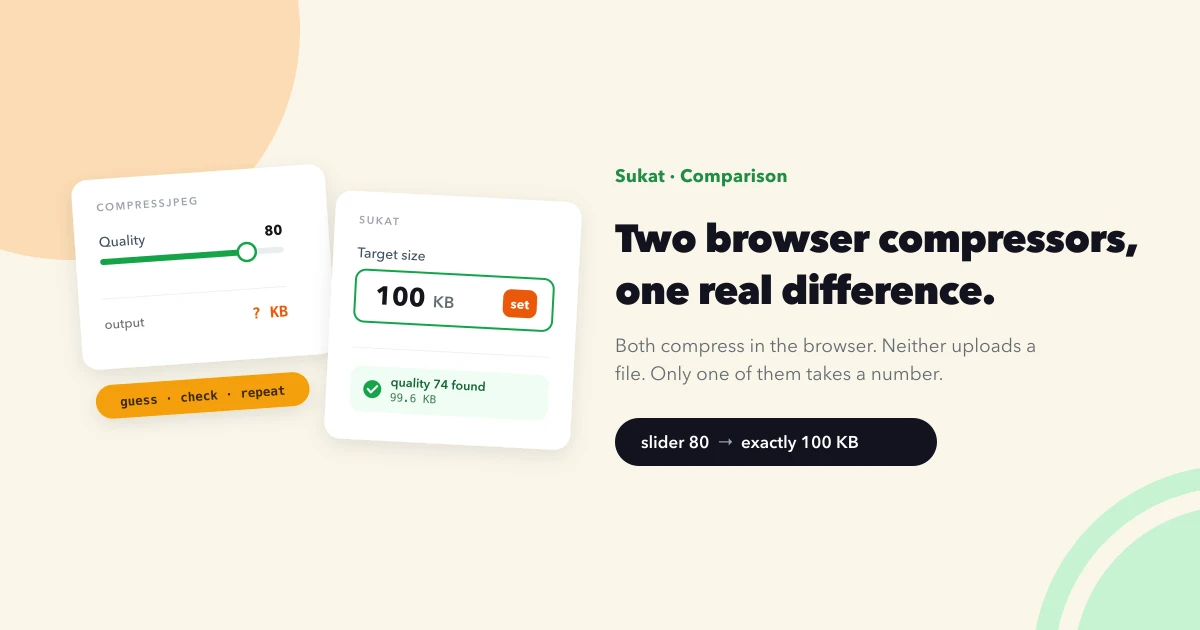
Sukat means "size" in Filipino. It's named for what it actually does — hit a specific file size — which no mainstream image converter reliably offers. Most tools compress to some fraction of the original and hope it's close enough. Sukat binary-searches for the highest quality that fits under your KB or MB ceiling, and only downscales dimensions as a last resort. The whole thing runs in your browser using the Canvas API, so your files never leave your device.
Most image converters let you pick a format and hope for the best. This one lets you set a hard ceiling — say, 200 KB — and the tool binary-searches for the highest quality setting that fits underneath it. If your target is still exceeded at quality 1, it reduces dimensions as a last resort, so you always get a file that meets your limit.
Use Auto mode (quality 0) to let the tool optimise automatically, or drag the slider to a fixed value between 1 and 100 for manual control. In manual mode, if the chosen quality produces a file larger than your target, the download button disables until you lower quality or raise the ceiling.
Different platforms and forms enforce different file size caps. Some common targets:
Set your target in KB or MB and the tool lands underneath it automatically.
Input: JPG, PNG, WebP, GIF, AVIF, HEIC/HEIF, and any format your browser can decode.
Output: WebP (default — smallest files), JPEG, or PNG.
iPhones store photos in HEIC format by default — great for storage, but Windows, Android, and most email clients can't display them. Drop HEIC files in, pick JPG or PNG as the output, and get a universally compatible image back. Conversion happens locally, so you can process an entire camera roll without uploading a single photo. Works for both single files and batch conversions, including Live Photos exported from your iPhone.
The quality slider appears when a single image is selected and the output is WebP or JPEG. Set it to Auto (0) to let the tool find the best quality that fits your file size limit, or drag it to a specific value (1–100) for manual control. If the chosen quality produces a file larger than your limit, the download button stays disabled until you adjust.
Add multiple images at once — each file is processed and downloaded individually. The quality slider and live preview are available only in single-image mode; batch conversions always use Auto quality to find the best fit for each file independently.
When you have more than one image queued, a "Download as a single ZIP file" option appears. Leave it checked to get all compressed files bundled into one compressed-images-<timestamp>.zip — saves you clicking through a separate download prompt for every photo. Uncheck it to keep the original one-file-at-a-time behaviour.
Once the page has loaded, the tool keeps working even if your Wi-Fi drops. All compression, resizing, HEIC decoding, and ZIP packaging happens in your browser — no server round trips at any point. Open the page on a plane, on the subway, or at a conference with flaky Wi-Fi, and it still resizes and zips your photos without issue.
WebP images are typically 25–35% smaller than equivalent JPEGs with no visible quality loss, making them ideal for websites, social media, and email. Every modern browser supports WebP natively — Chrome, Firefox, Safari, and Edge have rendered it for years. If you're compressing images for web publishing, WebP is almost always the right output choice.
Converted files are named [original-name]-compressed.[ext]. A file called photo.png becomes photo-compressed.webp. After downloading, the image source clears automatically so you can start fresh with the next batch.
Upload your image, set Maximum File Size to 100 and the unit to KB, then click Convert. In Auto quality mode, the tool binary-searches for the highest quality that keeps the output under 100 KB and reduces dimensions only if needed.
No. All conversion happens locally in your browser using the Canvas API. Nothing is sent to a server, and no account or sign-up is required.
Resizing changes the pixel dimensions (e.g., 4000×3000 → 1920×1440). Compressing reduces file size at the same dimensions by lowering quality or switching to a more efficient format like WebP. This tool does both — it compresses first and only resizes when it can't hit your file size target otherwise.
At very low quality settings or with complex, noisy images, JPEG's older compression can occasionally produce smaller files than WebP. For most photos, WebP wins by 25–35%. If file size matters more than format, try both and keep the smaller one.
Most Windows and Android devices don't display HEIC natively. Convert HEIC to JPG or PNG here before sharing — the tool handles iPhone HEIC files even on non-iPhone browsers.
No hard limits. Because everything runs in your browser, the practical ceiling is your device's RAM — very large files (100+ MB RAW exports) may be slow on older devices but are otherwise supported.
All processing happens locally in your browser using the Canvas API. No file is ever uploaded to a server. No account, no sign-up, no watermarks, no limits. Your images stay on your device from start to finish.