You've got a clear, well-lit photo against a plain background. You upload it to the visa or passport portal and it bounces: wrong file size, wrong format, or wrong dimensions. The frustrating part is that the picture itself is fine. The problem is almost always technical — and it's quick to fix once you know the exact numbers the portal wants.
The numbers that actually matter
Every program has its own rules, and the file size in kilobytes is the single most common reason a photo is rejected. A few of the common ones:
| Application | Dimensions | File size | Format |
|---|---|---|---|
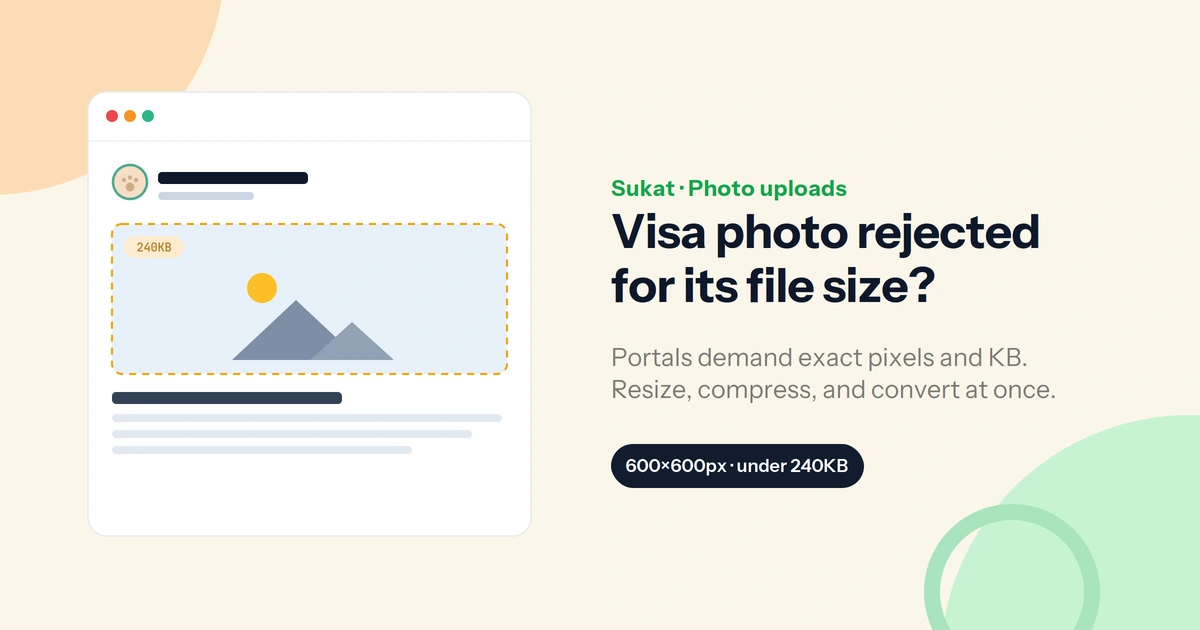
| US visa (DS-160) & DV Lottery | 600×600–1200×1200px | under 240KB | JPEG only |
| US passport (online renewal) | 600×600–1200×1200px | 54KB–10MB | JPEG, PNG, HEIC |
| Schengen visa | varies | usually under 200KB | JPEG |
| Indian visa portals | varies | often exactly 20KB or 50KB | JPEG |
Always check your specific embassy's current rules — but these patterns are nearly universal.
Resizing vs. compressing — they're not the same
This is where most people get stuck. Resizing changes the pixel dimensions — say, from 4000px wide down to 600. Compressing reduces the file's weight in KB without changing the dimensions. A photo can be the right 600×600 pixels and still be too heavy, or light enough but the wrong dimensions. Most portals need both: the right pixels and a file under the KB ceiling.
The iPhone trap
If you're uploading straight from an iPhone, there's an extra hurdle: iPhones save photos as HEIC, and no US government portal accepts it — a .heic upload is rejected on sight. The fix is to convert the photo to JPEG first. Sukat does this in the same step, and there's more on the format itself in why your iPhone photos won't upload.
How to format the photo (in your browser)
A passport photo is a picture of your face — exactly the kind of file you don't want sitting on a stranger's server. Sukat formats it locally, with no upload and no account:
- Drop the photo into Sukat.
- Resize to the required pixels — for example 600×600 — and convert to JPG if it isn't already.
- Set the file-size target the portal asks for — 240KB, 200KB, 50KB, whatever applies — and Sukat finds the highest-quality version that fits.
- Download and upload it knowing it's under the limit before you submit.
Everything runs on your device, so your photo never leaves it.
A few rejection reasons that aren't about size
Once the file is right, the usual remaining culprits are the photo itself: a shadow on the background (use a plain, evenly lit wall), glasses (take them off), or a face that's too small or too large in the frame — most rules want the face filling roughly 70–80% of the height. Fix those at capture time and the technical formatting carries the rest.
Frequently asked questions
Why does my photo get rejected when it looks fine?
Almost always the file, not the face — usually the wrong size in KB, the wrong dimensions, or the wrong format. US visa portals, for instance, require a JPEG of 600×600 to 1200×1200 pixels, under 240KB.
What's the difference between resizing and compressing?
Resizing changes the pixel dimensions; compressing reduces the file's weight in KB. Most portals need both — the right pixels and a file under the size limit.
My iPhone photo won't upload to the visa portal. Why?
iPhones save photos as HEIC, which US government portals reject. Convert it to JPEG first — Sukat does this while it resizes and compresses.
How do I compress a photo to exactly 50KB or 240KB?
Set that number as the target in Sukat and it finds the highest-quality version that fits under it — no trial and error with a quality slider.
Is it safe to format my passport photo online?
With Sukat, yes — the resize, conversion, and compression all happen in your browser, so your biometric photo is never uploaded.

About Sukat
Sukat builds free, privacy-first browser tools for compressing images and verifying published content. Everything runs in your browser — nothing is uploaded.