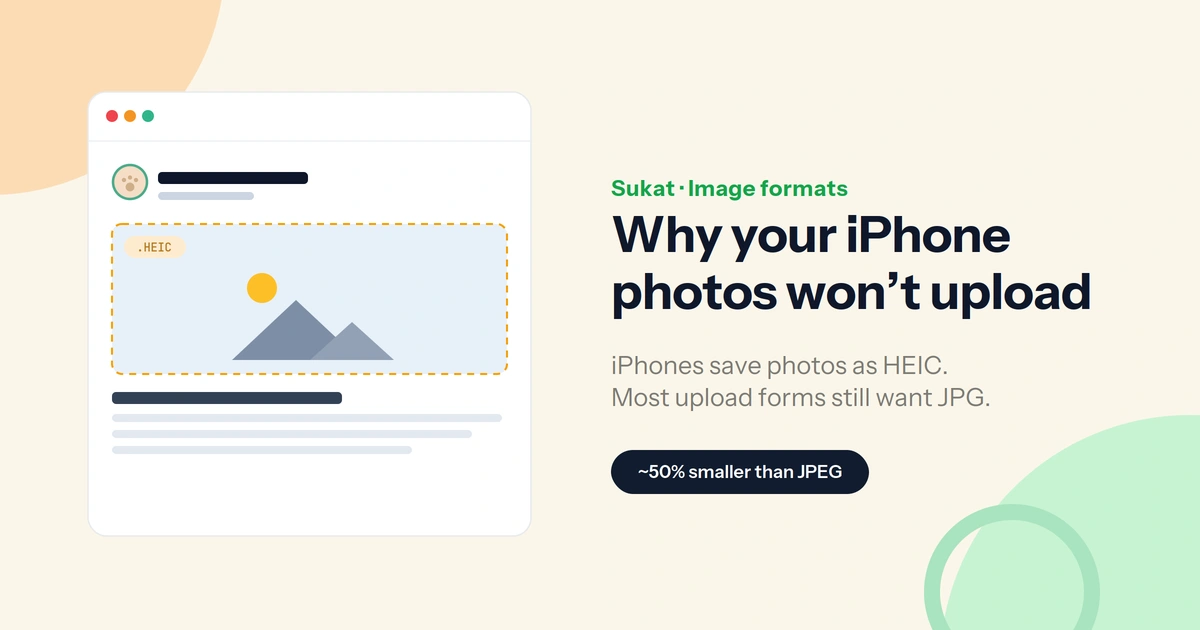
You select a picture straight from your iPhone, tap upload, and the site pushes back: "file type not supported," or the button just spins and nothing happens. Open the same photo in the Photos app and it looks perfect. So what's wrong?
In almost every case, the answer is the format. Your iPhone saved that shot as HEIC, and a large part of the web still doesn't accept it. The fix is to convert the file to JPG — and, in the same step, bring it under whatever size limit the form is enforcing.
What HEIC is, and why your iPhone uses it
Apple moved its cameras to HEIC (the High Efficiency Image Container) in iOS 11, and it has been the default ever since. The reason is size: a HEIC file is roughly half the weight of the same photo saved as JPEG, so shots take up far less room on the phone.
The trade-off is reach. HEIC is well supported on Apple devices and in current browsers, but a lot of the software people upload to every day was built around JPG and never moved on.
Where HEIC tends to break
A typical case looks like this — the photo is fine, but the destination only speaks JPG:
- Web upload forms. Job portals, government and exam sites, banking verification, and marketplace listings often accept only JPG, PNG, or WebP.
- Email and messaging. Some clients won't preview a HEIC attachment, and a recipient on Windows or an older Android phone may see nothing at all.
- Documents and print. Office apps and most print services still expect JPG.
- Older devices and CMSes. Plenty of content systems reject HEIC outright on upload.
Two problems hide inside one error
Converting HEIC to JPG fixes the format. But it often exposes a second issue: file size. A 12-megapixel iPhone photo turned into a JPG can still weigh several megabytes — well above the ceiling many forms set, which is frequently 100 KB, 200 KB, or 1 MB. The upload then fails again, this time for size rather than type.
The clean approach handles both at once: convert to JPG and compress to a target size in a single pass.
How to convert HEIC to JPG and hit a size limit
Sukat does both in the browser, with no upload and no account:
- Open Sukat and drop in the HEIC file — or a whole batch of them.
- Set the output format to JPG and enter the size the form asks for, say
200 KB. - Sukat runs a binary search for the highest-quality JPG that still fits under that target, then returns the file to download.
Because the work happens locally through the browser's Canvas engine, the photo never leaves the device.
Does converting HEIC to JPG lose quality?
A little, but rarely in a way that matters for an upload. HEIC is already a compressed format, and a JPG saved at a sensible quality looks effectively identical for ID photos, listings, and documents. The setting that matters most is the target size: choose a limit at or just under the form's ceiling, and the result holds up well.
A note on privacy
ID photos, signatures, and verification documents are exactly the files that shouldn't sit on someone else's server. Sukat processes everything on the device — no upload, no cloud copy, nothing left behind to delete. Those same iPhone photos also carry location data baked in by the camera, so it's worth learning how to remove GPS metadata before you send them anywhere.
Frequently asked questions
Can I convert HEIC to JPG without installing anything?
Yes. It runs in the browser, so there's nothing to download or install.
Can I convert several photos at once?
Yes. Add a batch of HEIC files and download the converted JPGs together.
What size should I target?
Match the form's stated limit. If it asks for under 200KB, set 200KB — or a little lower for headroom.
Will it work offline?
Once the page has loaded, conversion runs locally, so a weak connection won't stop it.
Is HEIF the same as HEIC?
For this purpose, yes. HEIC is Apple's HEIF-based container, and both convert to JPG the same way.

About Sukat
Sukat builds free, privacy-first browser tools for compressing images and verifying published content. Everything runs in your browser — nothing is uploaded.