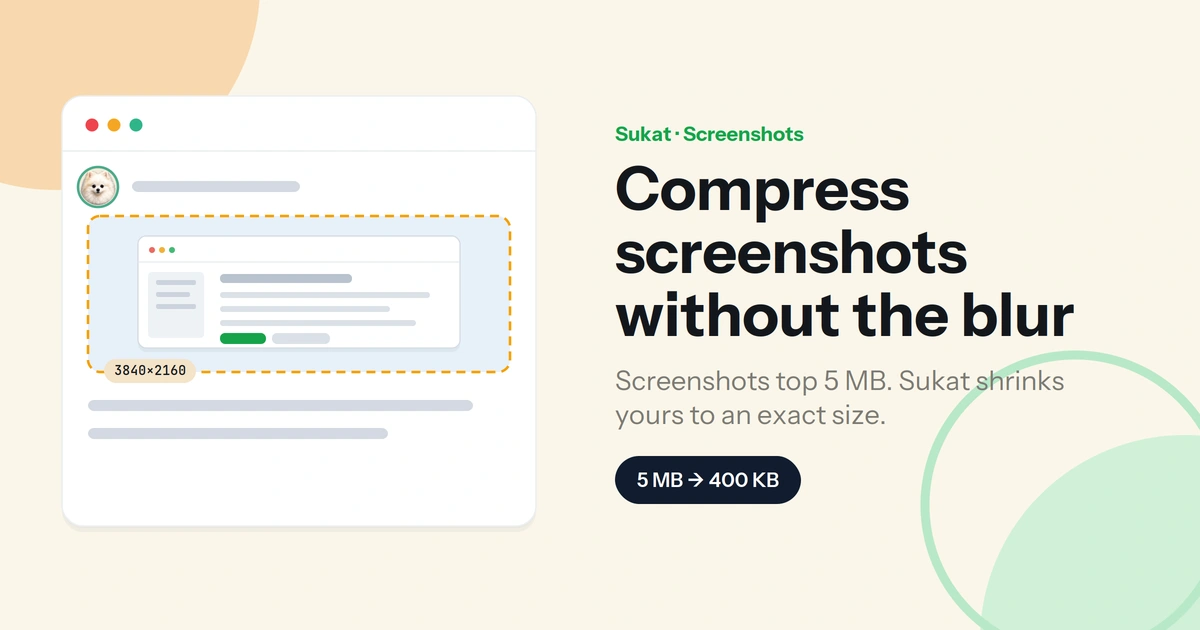
You take a quick screenshot to drop into a Slack thread or a bug report, and the file is 4 MB. Multiply that across a documented workflow or an email thread and it adds up fast — enough to slow uploads, trip attachment limits, and bloat the pages you paste them into. Screenshots feel small. As files, they're anything but.
Compressing them is easy. Compressing them without turning the text to mush is the part most tools get wrong.
Why screenshots are so large
- PNG is lossless. Screen-capture tools save as PNG by default, and PNG preserves every pixel exactly — great for crisp text, heavy on file size. Nothing is thrown away, so the file stays big.
- HiDPI and Retina resolution. A full-screen grab on a 4K monitor is 3840×2160 pixels, and a Retina Mac captures at double the logical resolution. More pixels, more bytes — before you've done anything.
- UI detail and gradients. Modern interfaces are full of subtle shadows, gradients, and antialiased edges that PNG can't compress away cheaply.
- Leftover metadata. Captures can carry colour profiles and other data you never see but still pay for in size.
The result is a 3–8 MB file where a few hundred KB would do.
The trick is keeping the text sharp
This is where generic "compress my image" tools let you down. Screenshots aren't photographs — they're sharp text, thin lines, and flat blocks of colour. Push them through aggressive JPEG compression and the text picks up fuzzy halos and the edges smear, which defeats the entire point of taking the screenshot.
Two approaches keep it readable:
- Compress the PNG. Reducing the colour palette and stripping metadata cuts a screenshot's size sharply while leaving text pixel-crisp — ideal for captures of app UIs, dashboards, and documents.
- Convert to JPEG only if it's photo-heavy. If the screenshot is mostly a photograph or a rich image, JPEG will go smaller — but keep the quality high enough that text edges stay clean.
And resize first if the capture is oversized. A Retina screenshot shown at normal size in a ticket or on a page doesn't need its full pixel count; bringing it down to the size it's actually displayed at is often the single biggest saving.
Compress to an exact size — locally
Sukat compresses to a precise KB target by running a binary search on the quality level until the file lands on the number you set, so you can drop a screenshot straight under a form's limit or a chat app's soft cap. Working in kilobytes? Set a KB target directly.
The part that matters most for screenshots: it all happens in your browser. Screenshots routinely contain things you don't want sitting on someone else's server — source code, internal tools, private conversations, customer records. Sukat never uploads the file. It's compressed on your machine and stays there.
Where you'll reach for this
- Chat and tickets. Slack, Jira, and Confluence all get slower and heavier with multi-megabyte captures. Lighter screenshots load faster for everyone on the thread.
- Email. Gmail caps attachments at 25 MB and Outlook at 20 MB, but you don't need to hit the ceiling for it to hurt — anything over about a megabyte slows sending and receiving, and a handful of raw screenshots in one thread adds up quickly.
- Documentation and READMEs. Multi-megabyte PNGs bloat repos and wiki pages; compressed captures keep them fast without losing legibility.
- Forms and uploads. When a portal enforces a hard KB limit, compress the screenshot to sit just under it.
Frequently asked questions
Why is my screenshot such a large file?
Screen-capture tools save lossless PNGs, and modern high-resolution and Retina displays produce a lot of pixels. Together that makes even a simple capture several megabytes. Compressing the PNG or resizing it to the displayed size fixes it.
Will compressing a screenshot blur the text?
Not if it's done right. Smart PNG compression keeps text pixel-sharp. Blur happens when a screenshot is pushed through heavy JPEG compression meant for photos — so keep captures of text and UI as compressed PNGs, and use JPEG only for photo-heavy images at a high quality.
PNG or JPEG for a screenshot?
PNG for anything with text, UI, or flat colour, because it keeps the edges crisp. JPEG only when the screenshot is mostly a photograph and you need the smallest possible file.
Can I hit an exact size like 500 KB?
Yes. Sukat targets a precise KB or MB value, so the screenshot lands on the size you set rather than somewhere near it.
Is it safe to compress a screenshot online?
With Sukat, yes — the file never leaves your browser. That's the relevant safeguard when a screenshot shows code, internal tools, or customer data.

About Sukat
Sukat builds free, privacy-first browser tools for compressing images and verifying published content. Everything runs in your browser — nothing is uploaded.