When you have one image to shrink, any tool will do. When you have eighty — a product catalogue, a photo shoot, a folder of screenshots for a wiki — doing them one at a time is a genuine chore. Upload, wait, download, repeat. And doing it by hand means every image ends up a slightly different size.
Batch compression fixes both problems: you set the target once, and every image in the folder comes out consistent.
When you need to compress in bulk
- Product catalogues. Dozens or hundreds of product photos that all need to sit under a store's size limit.
- Photo galleries. An entire shoot to send to a client or upload to a gallery, web-optimised in one go.
- Website assets. Every image on a page compressed before it ships, so the whole page loads faster.
- Applications and portals. A resume photo, certificates, and scanned documents, all brought under a portal's KB limit at once.
- Folders of screenshots. Documentation and wiki captures compressed together instead of one by one.
The one-by-one problem
Compressing images individually has two costs. The obvious one is time — every extra file is another upload-wait-download cycle. The less obvious one is consistency: eyeballing the quality slider for each image leaves you with a folder where every file is a different size, which looks messy in a gallery and makes size limits hard to hit reliably.
Batch compression solves both. One setting, applied to every image, gives you a consistent, predictable result across the whole folder.
How to compress a folder at once with Sukat
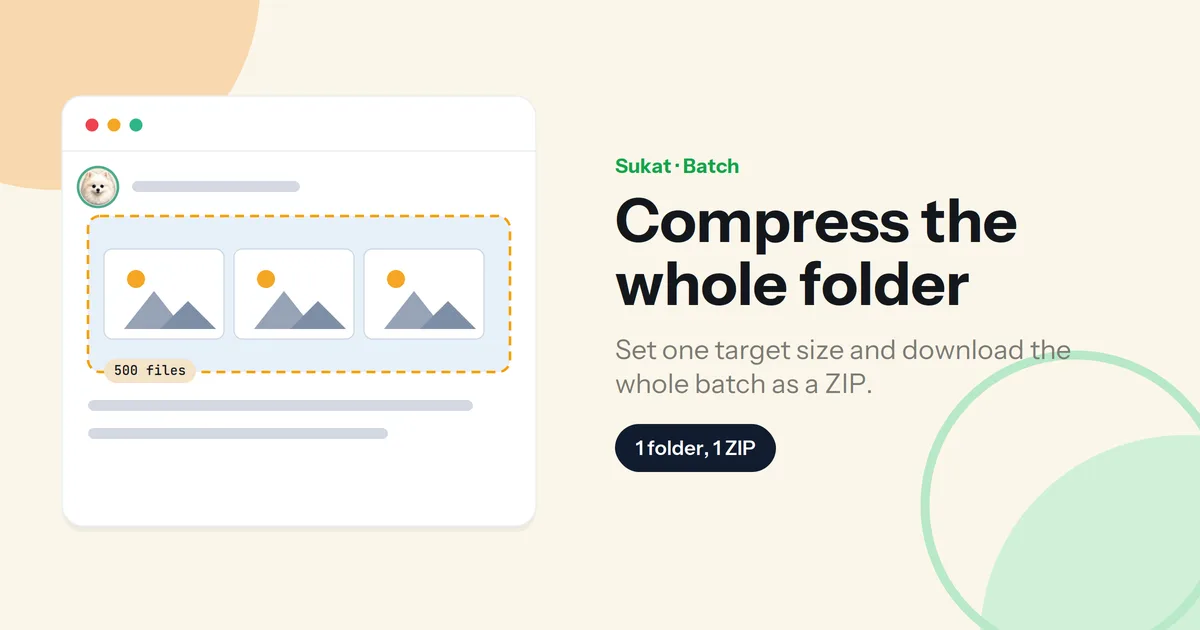
Sukat lets you drop in a whole folder, set a single target, and compress every image together — then download the entire batch as one ZIP, instead of unzipping a dozen separate downloads.
What sets it apart from the usual batch tools:
- No file-count cap. Many browser compressors stop at 20 images; Sukat handles the whole folder.
- A target size, not just a quality guess. Set an exact KB or MB target and every image is compressed to hit it — straight to a KB target when that's what a portal or store demands.
- More than compression. The same tool reads HEIC and AVIF and can crop or remove backgrounds — so a folder of iPhone photos or product shots is handled end to end, not just squeezed.
- Nothing uploaded. The whole batch is processed in your browser. A folder of client work or product photography stays on your machine.
Set a target size, not just a quality level
The difference between "smaller" and "the right size" matters most in bulk. Dragging a quality slider gives you a folder of images at unpredictable sizes; setting a target size gives you a folder where every file lands where you need it — under the store's limit, under the portal's cap, or light enough for a fast-loading gallery. Sukat applies that target across the batch, then hands you the ZIP.
Frequently asked questions
How many images can I compress at once?
As many as you like — Sukat doesn't cap the file count the way many browser tools do (they often stop at 20). Drop in the whole folder.
Can I download them all together?
Yes. The whole batch comes back as a single ZIP, so you're not saving a dozen files by hand.
Can I set a target size for the batch?
Yes. Set one KB or MB target and every image is compressed to hit it, so the folder comes out consistent.
Is it private to compress a folder of images online?
With Sukat, yes — the batch is processed in your browser and never uploaded, which matters for client work and product photography.
What formats can it handle?
JPG, PNG, and WebP, plus HEIC and AVIF on the way in — so a folder straight off an iPhone works without converting first.
Will the images stay sharp?
Yes, at a sensible target. Compressing to a reasonable size — and resizing oversized images to the size they'll be displayed — keeps them clean across the whole batch.

About Sukat
Sukat builds free, privacy-first browser tools for compressing images and verifying published content. Everything runs in your browser — nothing is uploaded.