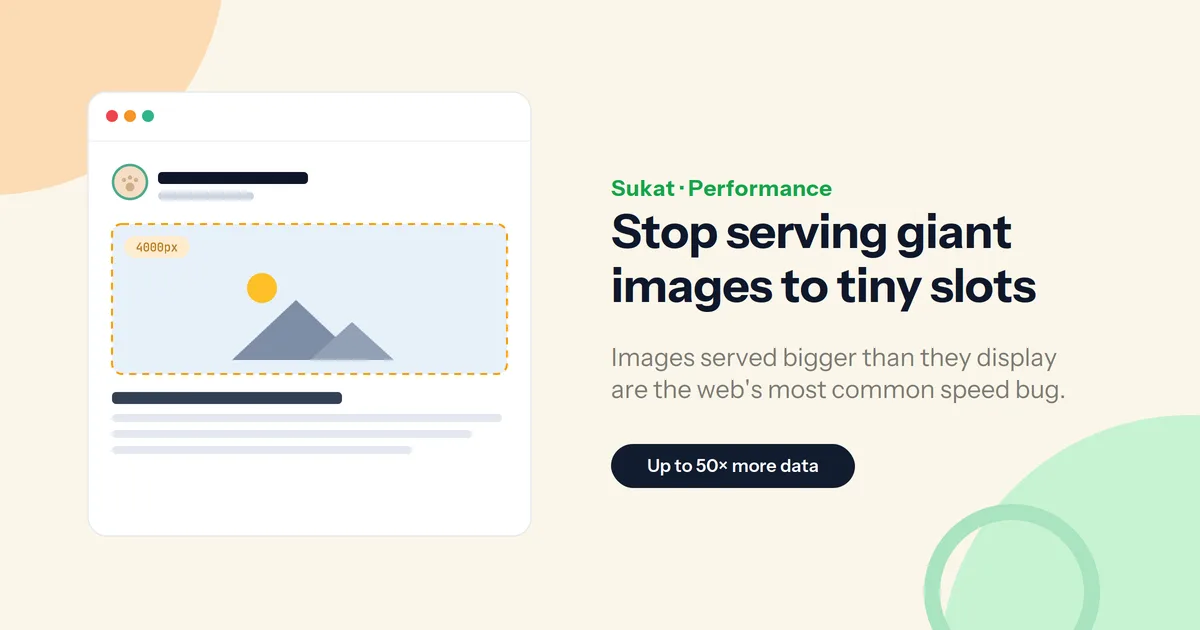
A page can look perfectly sharp and still be quietly slow. The usual reason: an image displayed at, say, 800 pixels wide was uploaded at 4000, and the browser downloaded the entire 4000-pixel file before shrinking it with CSS. The picture looks fine; the bytes were wasted.
This is one of the most common — and most overlooked — performance problems on the web, and it's easy to fix once you can see it.
Natural size vs. rendered size
Every image has two widths that matter. Its natural size is the actual pixel dimensions of the file. Its rendered size is how big it's shown on the page. When the natural size is much larger than the rendered size, the difference is pure waste — extra download, extra decoding, extra battery on mobile. A 6000×4000 photo shown in an 800×600 slot sends roughly 50 times more data than the page needs.
Why it's worth fixing
Images are usually the heaviest thing on a page — close to half of total page weight — and they're the largest element on screen for the majority of pages, which ties them directly to Largest Contentful Paint, one of Google's Core Web Vitals. Oversized images delay that paint, inflate mobile data use, and push more traffic through your server or CDN. The waste is invisible on a fast laptop and very visible on a phone on mobile data — and over 60% of image-heavy sites still serve the same file to every device, so phones download images several times larger than their screens can show.
How to find them
The quickest signal is the gap between natural and rendered size. Two ways to spot it:
- Sukat Inspector audits every image on a page and flags the ones served larger than they're displayed, alongside file size and format — so the offenders surface in a single scan.
- Lighthouse and PageSpeed Insights report the same thing with a note like "image is larger than it needs to be for its displayed dimensions," and estimate the potential saving.
The fix, part one — resize, then compress
For an image that's always shown at roughly the same size, the fix is simple: resize it down toward its displayed size, leaving a little headroom for high-density screens, then compress it. A good rule of thumb is to export at about twice the display width and no more — going beyond 2× rarely makes a visible difference and just adds weight.
| Image | Typical display width | Export at (≈2× retina) |
|---|---|---|
| Full-width hero | 1200–1600px | 1600–2400px |
| Content / in-post | 700–800px | 1200–1600px |
| Thumbnail | 300–400px | 600–800px |
| Avatar / icon | 50–100px | 100–200px |
The fix, part two — responsive images
If an image changes size across devices — a hero that's full-width on both a phone and a desktop — one file can't be right for everyone. That's what srcset and sizes are for: you provide a few widths (commonly 400, 800, and 1200 for content images, plus 1600 or 2000 for a full-bleed hero), and the browser downloads the smallest one that still looks sharp on the current screen. Generate three to five sizes, not a dozen.
Two quick wins while you're in there
- Set width and height on every
<img>. Without them the browser can't reserve space, and the page jumps as images load — which hurts Cumulative Layout Shift. - Lazy-load below the fold, never the hero. Add
loading="lazy"to off-screen images, but let the largest above-the-fold image load immediately — lazy-loading it slows the very metric you're trying to improve.
Resize and compress with Sukat
Once you know which images are oversized, Sukat handles the resize and compression in the browser — no upload, no account:
- Drop the image into Sukat, one at a time or in a batch.
- Resize to the width you actually display (about 2× for retina) and pick a modern format like WebP or AVIF.
- Optionally set a target size, and Sukat finds the highest-quality version that fits, then hands back the file.
Because everything runs locally, the original never leaves your device.
Frequently asked questions
How do I know if an image is oversized?
Compare its natural size (the file's real pixel dimensions) to its rendered size (how big it appears on the page). If the file is much larger than it's shown, it's oversized. Sukat Inspector flags these automatically.
How much bigger than the display should an image be?
About 2× for high-density (retina) screens. Beyond that the extra pixels rarely show and only add weight.
Will resizing make my images blurry?
Not if you keep roughly 2× the display width. Images only start to look soft when they drop below the size they're shown at.
Do I still need responsive images if I resize?
For images shown at a fixed size, resizing is enough. For images that stretch across very different screens, add srcset and sizes so each device gets an appropriate file.
Does Sukat upload my images to resize them?
No. Resizing, conversion, and compression all run in your browser; nothing is uploaded.

About Sukat
Sukat builds free, privacy-first browser tools for compressing images and verifying published content. Everything runs in your browser — nothing is uploaded.