The photo looks pixelated or blurry
The most common complaint, and usually a compression problem rather than a camera problem.
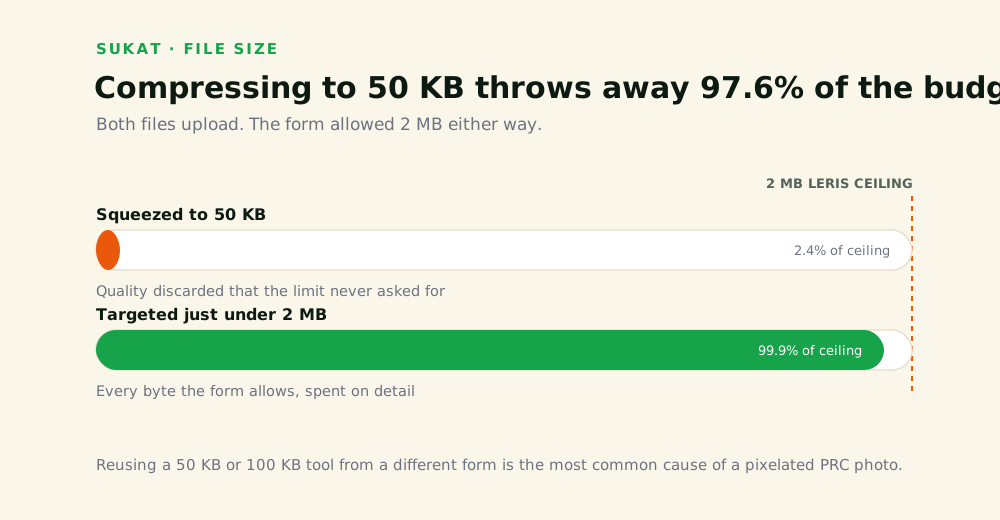
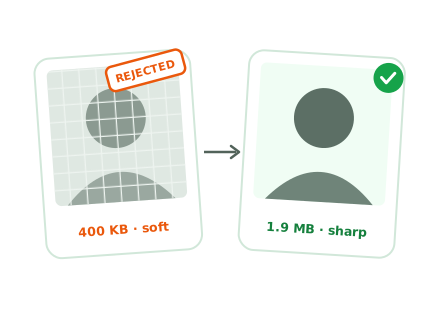
A phone photo is 3–8 MB. LERIS caps at 2 MB. Most people get under the cap by exporting at a low quality setting, or by running the file through a tool that applies a fixed compression level regardless of the target — and both overshoot, stripping far more quality than the size limit actually required. The result is a file well under 2 MB that looks visibly degraded. Skin goes blotchy, the name tag text softens, edges pick up halos.
The fix: compress to the target rather than to a quality setting. Sukat runs a binary search over quality levels to find the highest one that still lands under the ceiling, so a 2 MB limit produces a file just under 2 MB — not one at 400 KB with the quality thrown away.
Two other causes worth ruling out:
- Upscaling. Cropping tightly into a small photo and then enlarging it back to 2 × 2 invents pixels that were never captured. Start from the largest original you have.
- Repeated re-saving. Each save of a JPG discards a little more. A photo that has been sent through chat apps, saved, and re-exported several times is already degraded before it reaches any tool. Go back to the original from the camera roll.
The file is too large
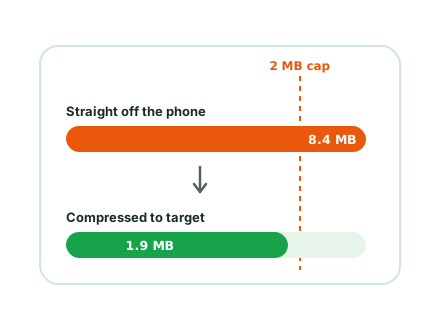
LERIS caps uploads at 2 MB, and a modern phone photo is comfortably above that.
The fix: set the target under 2 MB and export. No quality guesswork — enter the ceiling and the tool lands beneath it.
The file is in the wrong format
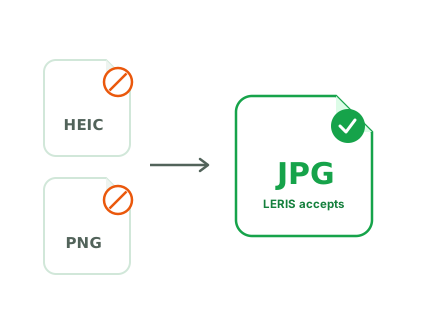
LERIS accepts JPG. An iPhone shooting in HEIC produces files that the upload field will not take, and PNG is refused at the photo field.
The fix: convert to JPG. HEIC, PNG and WebP all work as input to the tool above; export as JPG.
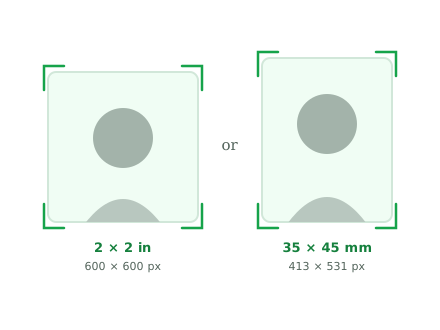
The dimensions are wrong
Either 2 × 2 inches or passport size (35 × 45 mm), depending on your professional board. These are not interchangeable, and a correctly compressed file at the wrong dimensions is still refused.
The fix: check your board’s checklist first, then crop to that ratio. The crop preview shows the ratio live.
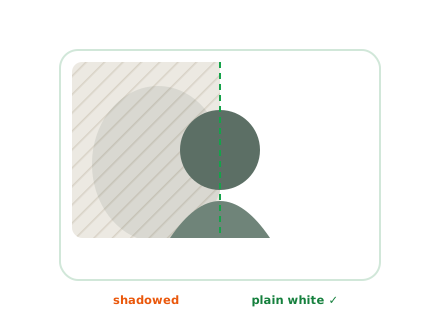
The background isn’t plain white
Patterned walls, curtains, visible shadows, and off-white tones all cause refusals. Shadows cast on the wall behind the head are the most-missed version of this — the wall is white, but the photo isn’t.
The fix: Sukat’s background removal replaces the background with clean white in the browser. If the original has heavy shadow across the face rather than the wall, though, removal won’t save it — that one needs a retake in even light.
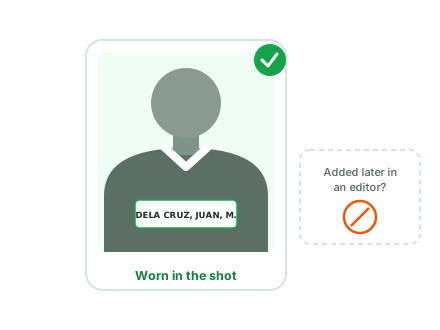
The collar or name tag is missing
This is the one that cannot be fixed after the fact.
PRC requires a collared top and a name tag showing your complete name, both physically present when the photo is taken. No tool adds them. If either is missing, the photo has to be retaken. The tag format and a correct sample are on PRC photo with name tag.
Before retaking
If you’re shooting again, get all six right in one pass:
- Collared top.
- Name tag: surname, first name, middle initial, legible.
- Plain white wall, even light, no shadow behind the head.
- Neutral expression, both ears visible, no glasses.
- Largest resolution your camera offers.
- Taken within the last 6 months.
Then crop, convert and compress with the tool. The full specification is on the PRC photo requirements page, and the upload walkthrough is on the LERIS photo guide.
Rules change
PRC revises its guidance between application cycles and requirements differ by board. Confirm current rules in your LERIS account and at prc.gov.ph before submitting.